Apple silicon Macs can still run Intel software through Rosetta, but that compatibility layer is no longer something users should treat as permanent. Apple says Rosetta will remain broadly available through macOS 27; beginning with macOS 28, its support will be limited to certain older, unmaintained games. For anyone who relies on a MacBook for mobile work, remote monitoring, or specialized peripherals, the practical takeaway is simple: audit critical apps before a future macOS upgrade turns the task into an emergency.
First, find the apps that still need Rosetta
On an Apple silicon Mac, open Finder, select an application, and choose Get Info or press Command-I. The Kind field identifies the app’s architecture.
- Application (Intel): The app runs through Rosetta on Apple silicon Macs.
- Application (Universal): The app includes both Intel and Apple silicon code.
- Application (Apple silicon): The app runs natively on Apple’s M-series processors.

That check is especially important for software that stays installed for years without much attention, including security-camera clients, printer utilities, network tools, and creative-production software. A program that was Intel-only when it was installed may have received a native replacement since then.
The main app is not always the whole story. Universal audio, video, and professional applications can still depend on Intel plug-ins, extensions, or helper components. In some cases, the app may be launched with Rosetta specifically to maintain compatibility with those additions, so they should be checked separately.
Dahua and Reolink camera clients have moved on
Dahua’s current SmartPSS Lite downloads include a dedicated “macOS M Series Download” option for Macs with Apple silicon. Dahua also says the older SmartPSS client is no longer supported on M-series Macs and directs those users to SmartPSS Lite instead.
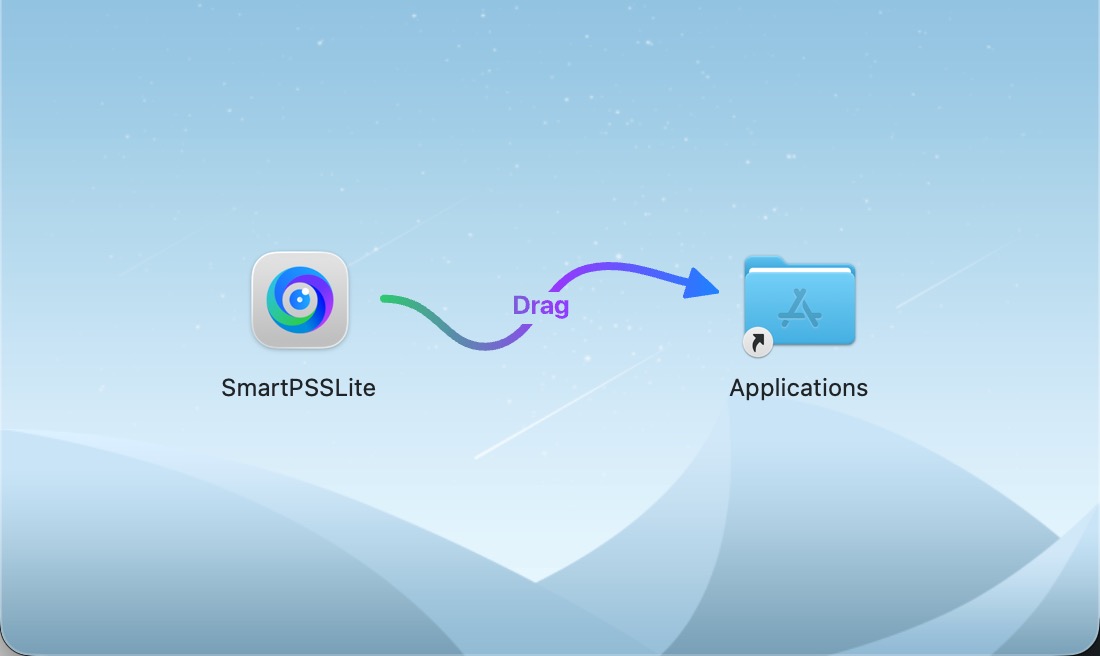
Reolink Client has also made the transition. Reolink announced in July 2026 that its Mac version supports both M-series Apple silicon Macs and Intel Macs. The current installer is available through Reolink’s official software center.
These are useful examples for people who use a MacBook to check cameras while away from a desk. Rather than assuming an older monitoring client remains an Intel dependency, it is worth checking the vendor’s current download page for a Universal or Apple silicon build.
Update carefully, then test the workflow you depend on

An installer may offer to keep the existing copy of an app or replace it. Replacing an older version can preserve settings and logins in some cases, but that result is not guaranteed for every app. Before changing a client that controls cameras, networking gear, or other important equipment, save any available configuration and make sure account credentials are accessible.
- Identify the Intel apps that matter to your day-to-day workflow.
- Download the latest release directly from the developer’s site.
- Look for a Universal or Apple silicon version.
- Back up settings and have passwords or device login details ready.
- Test the specific cameras, plug-ins, extensions, or workflows you rely on after updating.
Rosetta still provides valuable breathing room, and macOS Tahoe 26 continues to support Intel applications through it. But the remaining transition period is best used to retire avoidable Intel dependencies. For MacBook users managing security systems or other long-lived utility software, Dahua SmartPSS Lite and Reolink Client show that a native replacement may already be available—even if the installed app has not changed in years.
Post Footer automatically generated by Add Post Footer Plugin for wordpress.